
|
MoonC.mobi |
|
Mobile aMobile Apps for your Active Enjoyment for your Active Enjoyment |

|
MoonCBook Manual iOs |
Crew Leave |
|
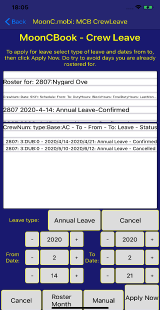
Here you see the roster from the previous report page and below you see a list of leave applications.
If you came from your roster you see all your leave applications. You can request more leave by selecting from and to date, and selecting the type of leave by pressing the Leave Type button repeatedly,. The press Apply Now and it will appear in your list of Leaves with state of Requested until Crew Control Confirms or Rejects. You can cancel any leave request by selecting it and pressing the button marked Cancel.
If you came from everybody rostered that day you see the crew leave applications for that month. You can select a different month by changing from year and month to wanted year/month and pressing “Find Now” If you select a leave application You can either Confirm or Reject it by pressing the appropriate buttons.
This page has 4 buttons at the bottom.
“Cancel” Will bring you back to the Crew Page.
“Roster Month” Opens the Report Page where crew can apply for different types of leave and Crew Controllers can approve or disapprove same and also access the Roster Month report. “Manual” brings you to this page of the MoonCBook manual on the MoonC.mobi website. “Save Now” (If permission) To save the selected crew to the crew list for the legs selected.
Types of Leave: - Annual Leave - Compassionate Leave (UnPaid) - Compassionate Leave (Paid) - Maternity Leave (Unpaid) - Maternity Leave (Paid) - Other Leave (Unpaid) - Other Leave (Paid)
Leave requests will stop crew from being rostered by the automated rostering process. Crew Controllers can still roster them manually. If a Crew Controller rejects the leave request, or the crew itself cancels it, the crew is again available for the automated rostering process.
|